
This article is simplified for beginners. Complete information about how DNS works can be found in the DNS category.
What do you want to do with DNS?
Pointing to a VEDOS service
The guide assumes that you have a domain and an existing VEDOS hosting service, and also that the domain uses WEDOS DNS (the default setting for a domain registered with VEDOS).
Log in to the customer administration and visit the domain pointing link ⧉.
Select from the list the domain you want to point to the hosting.

Check the hosting service to which you want to point the domain (Webhosting, Hosting WP, Mailhosting, …).
Choose whether you want to disable changes to MX record settings (emails).
Click the Set button.
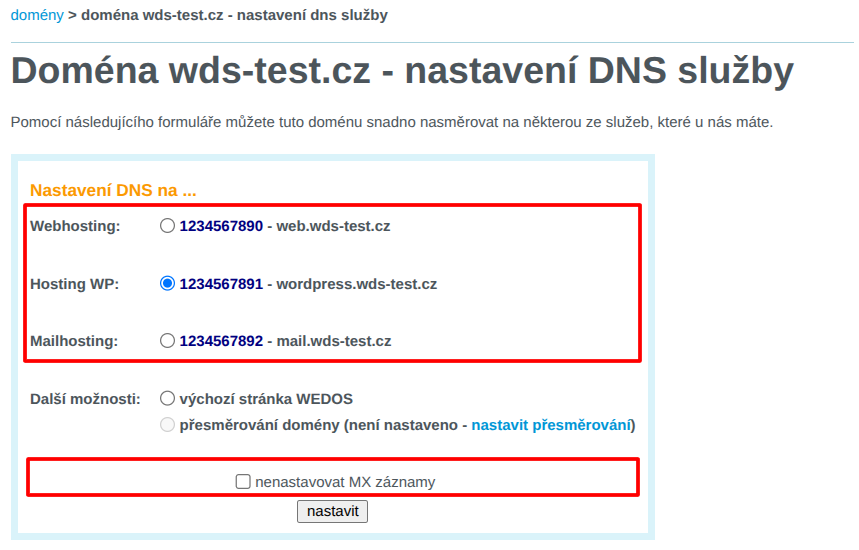
Done! 🎉
Wait a few minutes for the changes to propagate.
If the website changes do not appear, try refreshing the page without the browser cache using the keyboard shortcut Ctrl+Shift+R.
Records from another provider
The guide assumes that the domain uses WEDOS DNS (the default setting for a domain registered with WEDOS).
Log in to the customer administration and visit the domain record editing link ⧉.
Select from the list the domain on which you want to set the records.
In the DNS records table, check all records with the same name and type that the provider wants you to set.
If the service provider asks you to set A-type records, and your domain has both A and AAAA records, delete both types.
Click the Delete records button.

For each record from the other provider, click the New record button, fill in the form, and click the Save record button.
Follow these rules:
- Enter the record name without the domain name itself (the Name field can be left blank.
- Remove the
@character from the record name. - For a subdomain name in the form of e.g.
www.domena.tld, remove the domain name and keep only the subdomain (e.g.www).
- Remove the
- Do not fill in the TTL field.
- Enter the type and data exactly according to the provider's instructions.
- Enter MX record data in the form
X domena.tld, whereXis the number the provider specifies as the priority, anddomena.tldis the mailserver address.
- Enter MX record data in the form

Done! 🎉
Changes usually take effect within 30 minutes.