
In this article you will find procedures for editing billing documents for unpaid payment requests and invoices. For paid orders, the system no longer accepts any changes to issued documents.
Procedures for permanently changing billing information can be found in the guide Services – Billing Information.
In this article you will learn:
- How to change the billing information of a payment request once
- How to change the billing information of a supplemental invoice
- How to enter your own document identifier
- Frequently asked questions
One-time change of order information
You can change the customer only for an unpaid order!
If you need to change the details of an issued payment request so that the change does not affect the payment details (variable symbol) and permanent billing details, proceed as follows:
- Log in to the customer administration ⧉.
- In the top menu, select Billing.
- In the left menu, click Orders.
- Select the order for the unpaid service whose information you want to change.

- At the bottom of the order, below the Customer table, find the Edit customer link and click it.

In the window that opens after clicking the link, set the new billing details, uncheck the consents, and save the changes.
Editing without access to administration
If you do not have immediate access to the customer administration, you can proceed as follows:
- Open the e-mail with the payment request.
- Click the link for changing billing information.
- Edit and save the details.
The changes will apply to all documents that relate only to this specific request. The service's permanent billing details in the system will not change.
You can make changes at any time before the order is paid. After it has been paid, the system no longer accepts them.
Changes for supplemental invoices
For supplemental invoices (when ordering additional services), you cannot change the billing information directly. The system always sets the details on the supplemental invoice according to the billing information of the base service to which you are ordering the additional service.
If you want a supplemental invoice issued with different details, first adjust the billing information of the main service (e.g. Webhosting) according to the guide Services – Billing Information, and then contact us ⧉. We will reissue the document for you.
Internal order number
If you need to add your own document identifier for your accounting to the issued documents, proceed as follows:
- Open the detail of the selected order.
- In the Order information table, fill in the Internal order number field.
- Click the Save changes button.
- Download the updated documents from the administration.
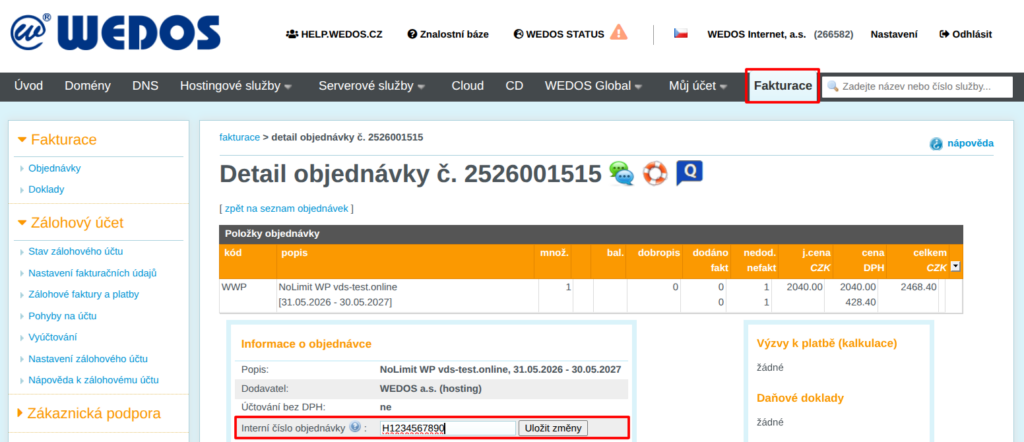
Setting the internal order number has no effect on other orders or on documents issued before it was added (for example, a payment request sent by e-mail).
Frequently asked questions
What if I do not see the link for editing the customer as mentioned?
If you do not see the link mentioned, it may be a paid order, or the system may be blocking this change for another reason. Change the billing information according to the guide Services – Billing Information.
What if I do not see the order in the list?
If the service is functional, it may be maintained in another customer account or with another provider. Contact the service provider or administrator and arrange the adjustment of the details or the service transfer. If the service is not functional even in another account, it has probably been deleted.