
In this guide, you will learn:
- Which plans are available for Hosting WP
- How to change the plan
- How to change the billing period
- Frequently asked questions
Plan comparison
The Hosting WP service offers three plans covering a wide range of requirements.
All plans have several common features:
- The service includes one WordPress content management system on one domain or subdomain. It does not support aliases or additional subdomains.
- Web servers use Litespeed and Redis cache for maximum application performance.
- Protection against DDoS, brute force, and other attacks is provided by WEDOS Global Protection.
The basic differences between the individual plans are shown in the table below:
| Parameter | LowCost WP | NoLimit WP | Business WP |
|---|---|---|---|
| Web space | 10 GB | Unlimited | Unlimited |
| Database space | 1 GB | 2 GB | 5 GB |
| Email space | – | 10 GB | 1 TB |
| Billing period | Annual only | Annual only | Annual or monthly |
Plan change
With the Hosting WP service, you can upgrade or downgrade your plan. When changing the plan, keep the following rules in mind:
- When upgrading the plan, the system will issue a supplementary invoice in an amount corresponding to the service price for the entire remaining period. If supplementary services are canceled during the upgrade, the system will reduce the price accordingly.
- When downgrading the plan, we do not refund the money paid for the upgrade, even partially. The system allows the downgrade only if the status of the email services meets the parameters of the target plan.
Preparing for a plan change
You do not need to do any preparation to upgrade the plan.
Before downgrading the plan, make sure that for the target plan:
- For NoLimit WP, you do not have more than 5 GB of email in your email mailboxes. If you need to switch to this plan with a larger email volume, contact customer support via the form ⧉. Provide the service name and the target email capacity.
- For LowCost WP, you do not have any active email mailboxes on the service. Delete them according to the guide Emails – Mailbox management.
Performing the plan change
Change the Hosting WP service plan by following these steps:
- Log in to the customer administration ⧉.
- In the navigation bar, select Hosting Services Hosting WP.
- Select the service whose plan you want to change from the list.
- In the left menu, select Change plan.
- For the selected plan, choose the billing period and click the SELECT button.
- Confirm the change with the SET PLAN button.
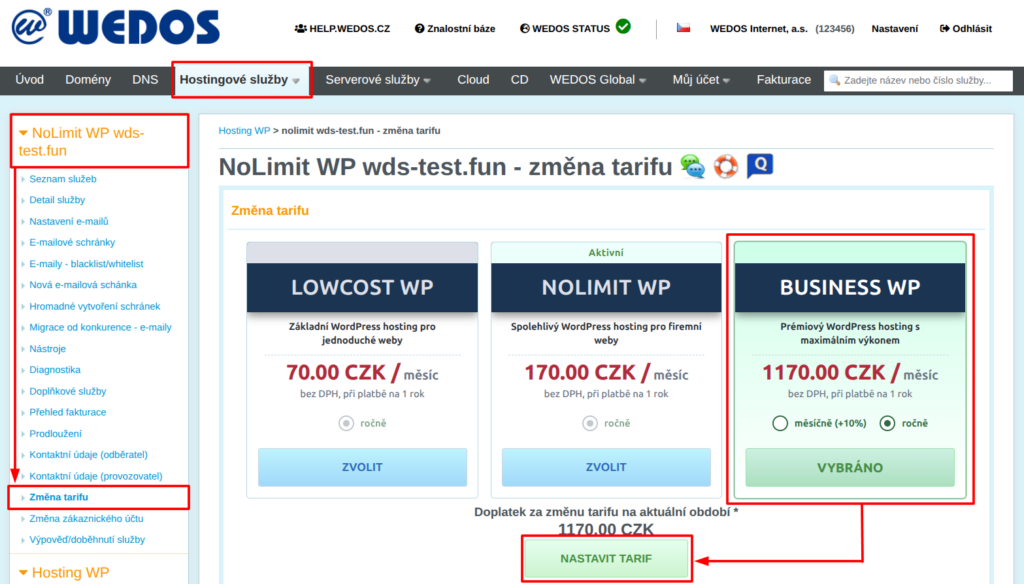
If the additional payment for the change is not zero, the system will immediately issue and send a supplementary invoice.
Changing the billing period
To change the billing period, follow the same steps as for changing the plan, but in the box with the selected plan, check the chosen billing period.
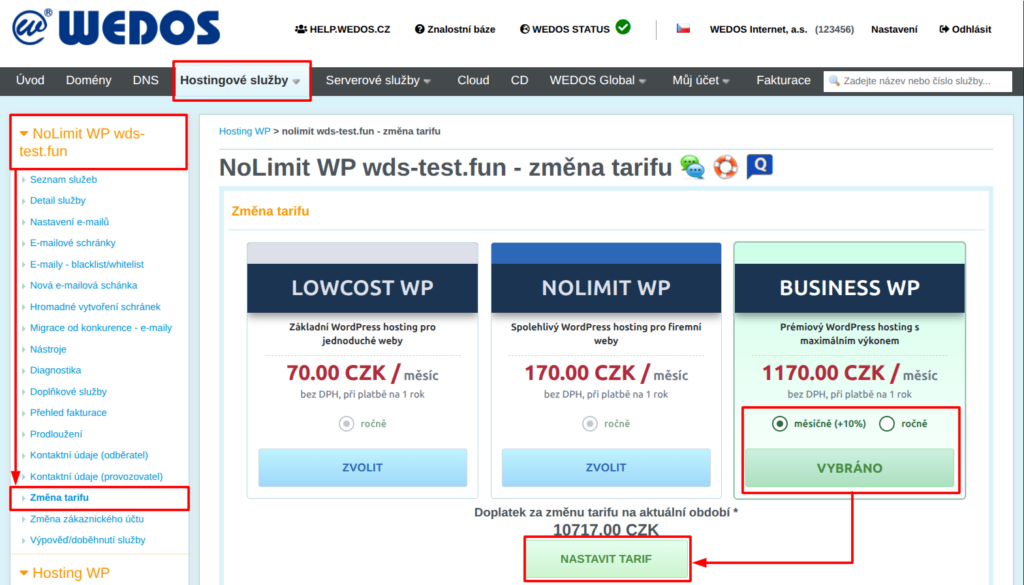
The billing period change will take effect only after the service's current expiration date.
Frequently asked questions
I am upgrading the plan to Business with monthly billing. Why is the supplementary invoice amount so high?
The supplementary invoice charges for the service according to the current billing period. With a monthly period, the system will issue invoices only starting with the following period.