
Before resetting WordPress, we strongly recommend making your own backup!
In this article, you will learn:
- How the Hosting WP reset works
- How to restore the service to its default state
- Frequently asked questions
Reset process
The Hosting WP service reset performs the following steps:
- Deletion of files and database. The reset deletes all user content of the preinstalled WordPress, which can then be restored only from a backup. The reset has no effect on emails.
- Fresh WordPress installation with default settings. After the reset, the same WordPress is available as after creating a new service. The system sends information about the reset and login to the current billing email of the service.
Restoring the service to its default state
If you want to return the WordPress content management system to its original state, follow these steps:
- Log in to the customer administration ⧉.
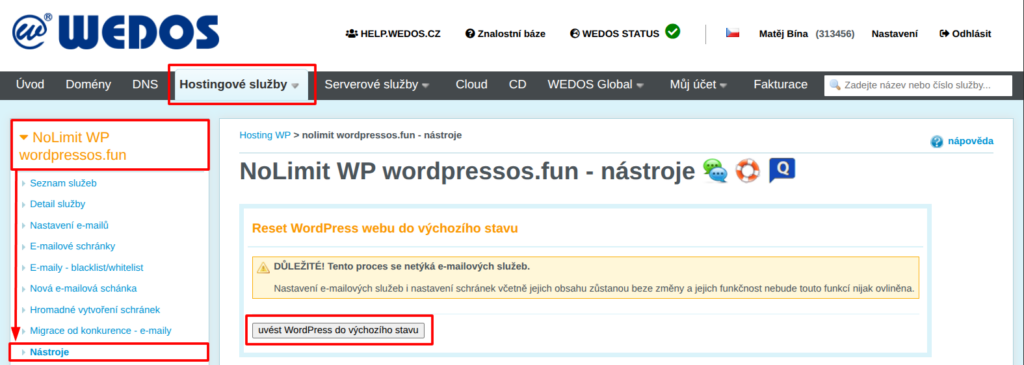
- In the navigation bar, select Hosting Services Hosting WP.
- Select the service you want to reset from the list.
- In the left menu, select Tools.
- In the Reset WordPress website to default state section, click the Set WordPress to default state button.
After clicking the button, wait 1-3 minutes. Once the system completes the reset, it will inform you by email.
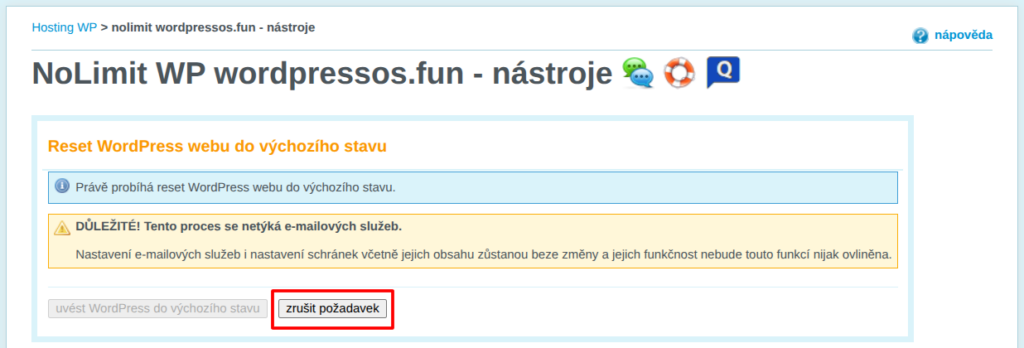
After sending the reset command, you can cancel it with the Cancel request button, but it works only for a few tens of seconds after the reset starts. It serves as a safety brake if you realize immediately after initiating the reset that you still need to save something from the website.
Frequently asked questions
We accidentally reset the wrong website. What should we do?
Cancel the request. If the reset has already completed, restore the website from a backup, either your own or request a restore from our side.
How do we reset the service emails?
Back up the emails using an email client, for example Thunderbird ⧉. Then delete the existing mailboxes.