
This article deals only with changing the email password. More detailed information about email settings can be found in the articles Emails – Manual and Emails – Mailbox Management.
If you need to change the password for the WEDOS customer administration, follow the article Administration – Login Problems. Changing the password of the corresponding email mailbox has no effect on the administration password.
In this article you will learn:
- How to change the email password:
- Common problems
- Frequently asked questions
Changing the password in the customer administration
Changing the password may take up to 15 minutes; until then, the original password remains valid. You can then log in to webmail and any other client with the new password.
You can change the password in the customer administration only if you have the given hosting in your account, or if you are an authorized user of the service. If you do not have access to the customer administration of the hosting on which the email mailboxes are located, contact the administrator of this service.
To change the password in the customer administration, follow these steps:
- Log in to the customer administration ⧉.
- In the top menu, select Hosting services and Mailhosting, Webhosting, WMS or WebSite.
- Select the service for which you want to change the password.
- In the left menu, select Email mailboxes.
- For the mailbox you want to edit, click the magnifying glass icon.
- In the Password field, enter (or use the key button to randomly generate) a new password and type it again into the Confirm field.
- At the top of the form, click the Save changes button.
Manage email mailboxes

Wait 15 minutes for the change to propagate and then log in with the new password.
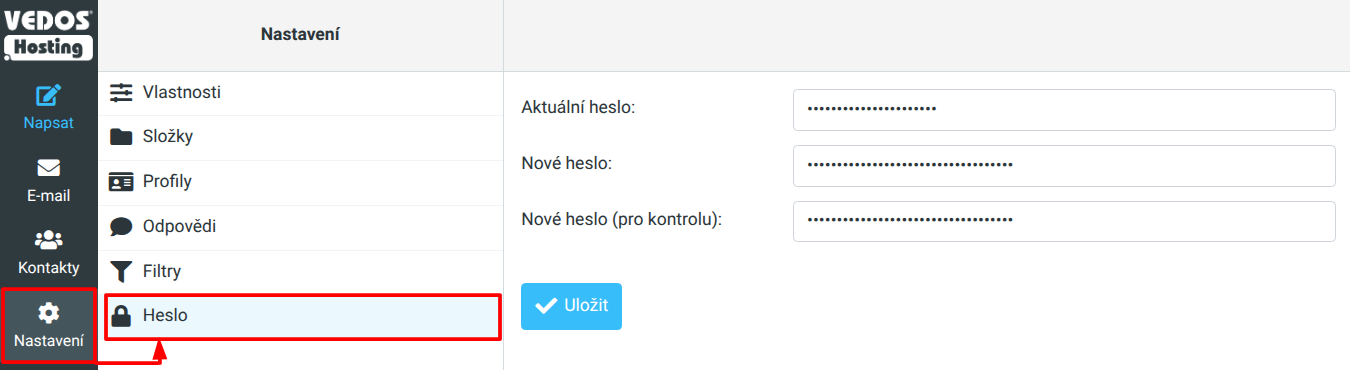
Changing the password in Webmail
You can change the password in webmail only after a successful login, if you know the current password.
Proceed as follows:
- Log in to WebMail ⧉.
- In the upper right corner, select Settings.
- In the left column, select Password.
- In the Current password field, enter the current password; enter the new password in the remaining fields.
- Click the Save button.
Common problems
Common problems with changing the email mailbox password include:
The new password does not work
Problem: After changing the password, it is still not possible to log in to the mailbox.
Cause: Successful login depends on more than just the password. In some cases, the mail server may be unavailable. The most reliable login test is the online client WebMail ⧉.
Solution: Make sure the login details, the way they are entered, and the mail servers are correct.
- After saving the password change, wait 15 minutes for the new settings to propagate.
- Log in with the full email address and the new password in WebMail ⧉.
- In your email client (Outlook, Thunderbird, ...) check the SMTP and POP3/IMAP settings.
- On Status ⧉, verify that the mail servers are not experiencing an outage.
I do not have access to the customer administration
Problem: I cannot change the password because I cannot get into Webmail or the customer administration.
Cause: The mail services are either managed by a third party or are in an unavailable customer account.
Solution: If the hosting of the mail services is managed by a third party or company, contact this intermediary with your request to change the password. If you have the mail services in your account but cannot log in, follow the instructions in Administration – Login Problem.
Frequently asked questions
Where else will the email mailbox password be applied?
Enter the password change in all mail clients where you want to keep access to the mailbox. If you send emails from a web form, make sure that the new password is set there too (if you do not send via PHP mail).
Conversely, the change will not affect the access details to the VEDOS customer administration.