
This article deals with checking the size of email accounts of the hosting service and individual mailboxes. If you need to increase the capacity, follow the instructions in Emails – Increasing mailbox capacity.
In this article, you will learn:
- How to set mailbox sizes
- How to check email mailbox occupancy:
- Common issues
- Frequently asked questions
Mailbox size
The size of individual mailboxes is unlimited by default, and their filling is tied to the total hosting space. The same applies to the maximum daily number of sent emails.
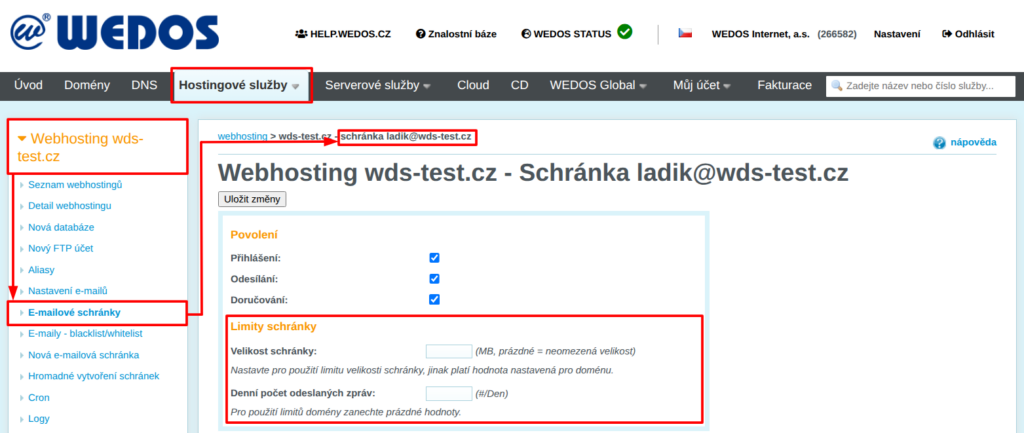
If you want to limit the size of individual mailboxes, follow these steps:
- Log in to the customer administration ⧉.
- In the top menu, select Hosting Services Webhosting, Mailhosting, Hosting WP, or WMS.
- Select the specific service from the list for which you want to check the mailbox.
- In the left menu, click Email mailboxes.
- In the table, open the detail of the specific mailbox you want to limit.
- In the Mailbox limits section, set the desired size (to restore the default setting, delete the value).
- Click the Save changes button.
Open the service email mailbox list:
Checking email mailbox occupancy
If email mailboxes reach 90% or 98% occupancy, the system will notify you by email (if you do not disable this setting). If you have a limited capacity of a specific mailbox in its settings, the system sends a notification to that mailbox automatically.
When a mailbox is completely full, both receiving and sending mail are blocked. You can deal with an overfilled mailbox by:
- Cleaning it up – remove unnecessary sent and received mail, especially SPAM.
- Increasing the space according to the instructions in Emails – Increasing mailbox capacity.
Checking in the customer administration
To check occupancy in the customer administration, follow these steps:
- Log in to the customer administration ⧉.
- In the top menu, select Hosting Services Webhosting, Mailhosting, WebSite, or WMS.
- Select the specific service from the list for which you want to check the mailbox.
- In the left menu, click Email mailboxes.
- In the table, check the size of individual mailboxes as well as the total size as of the given date and time.
Check the service email mailboxes:

The system updates the sizes of email mailboxes in the customer administration irregularly. The dates and times to which the sizes are valid can be found in the table right next to the size records.
Another way to find out the current size of emails in the customer administration is to run a diagnostic.
Checking in WebMail
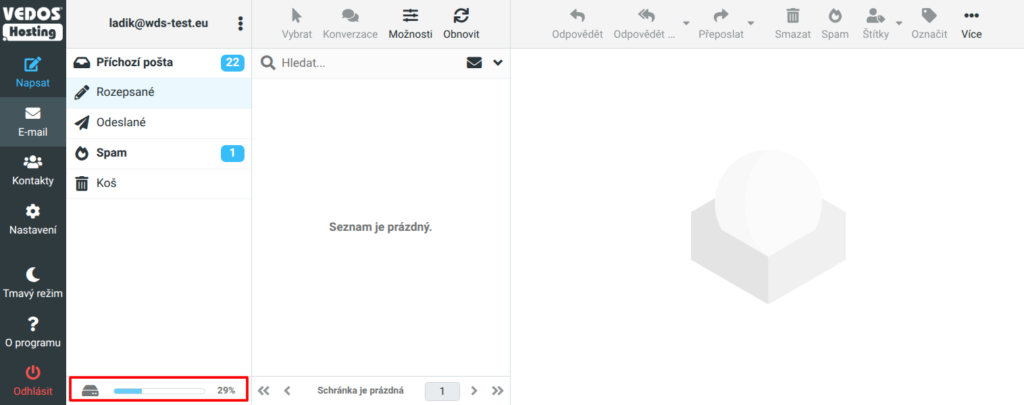
To check occupancy in the WebMail client, follow these steps:
- Log in to WebMail ⧉.
- The mailbox occupancy (in percent) is shown at the bottom of the left menu.
Common issues
Common problems with checking mailbox occupancy include:
Outdated email size data
Problem: After cleaning up emails, the system still shows old values.
Cause: The system does not update the recalculated values in the administration continuously. However, when an update occurs, it displays the time of the last update in addition to the value.
Solution: If you need the email size information updated as soon as possible, contact support and request an update of the email quota. Include the service name.
Frequently asked questions
How do I find out which data fills the mailbox the most?
You can find the occupancy of individual mailboxes most easily in the administration.
You can find the occupancy of individual mailbox folders in WebMail ⧉ under Settings Folders (Selected folder) Size. The size of individual emails is listed in the overview.