
This guide assumes that the Hosting WP service you want to switch to from Webhosting or a competitor does not yet exist. If you already have the service set up, migrate the website data using any migration plugin.
Further procedures and information about switching between VEDOS hosting services can be found in the guide Services – Change of hosting type. A complete guide to moving services from a competitor can be found in the article Services – Transfer from another provider.
In this guide you will learn:
- How to move WordPress from another service to Hosting WP
- How to move emails
- Frequently asked questions
Move WordPress to Hosting WP
If you have an existing WordPress website on another hosting (Webhosting, or from a competitor), we will help you move it to Hosting WP. The procedure consists of these steps:
- Copy the WordPress website to VEDOS using a plugin
- Check the functionality of the copy on a test domain
- Set up the complete service for your own domain
Copying WordPress
The copying plugin is intended only for migrations to Hosting WP or SODEW. To move to Webhosting NoLimit, use the automatic migration tool described in the guide Webhosting – Automatic data migration.
The first step in moving the service is to create a working copy of your website. The process is fully automated through the plugin and includes setting up a test domain, so it does not affect the operation of the website on the original solution in any way.
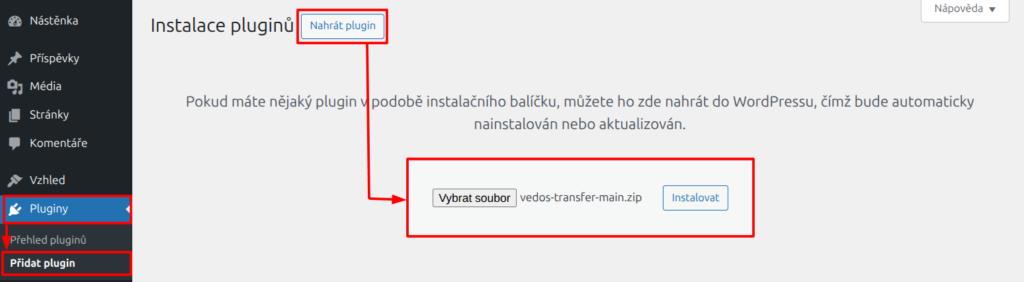
To copy an existing WordPress site to Hosting WP, first download, install, and activate the copying plugin:
- At the link https://vedos.cz/vedos-transfer-main.zip ⧉ download the ZIP file with the copying plugin.
- Go to the administration of the WordPress website you want to move.
- In the left menu select Plugins Add Plugin.
- Click the Upload Plugin button.
- Upload the file and click the Install button.
- Activate the plugin.
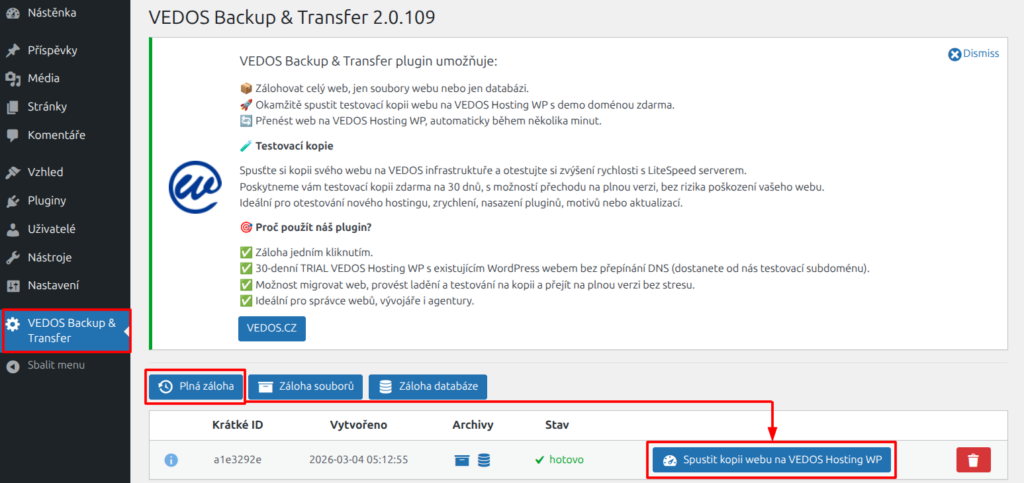
After the installation and activation are complete, proceed with these steps:
- In the left menu select VEDOS Backup & Transfer.
- Click Full Backup.
- Wait for the backup to be generated.
- Click the Start website copy on VEDOS Hosting WP button.
- Wait for the copying process to finish.
- By clicking the green button with the domain in the form
xxx.123.vedos.website, open the website copy on the specified test domain.
Functionality check
We provide the test environment and domain for 30 days from the start of WordPress copying to Hosting WP.
You will find the copied website on the test domain in the form xxx.123.vedos.website. Try:
- Website speed and administration
- Functionality:
- sending emails via SMTP (the service does not support PHP mail)
- common processes on the site (e.g. shopping cart, contact forms, ...)
- login of different roles (e.g. admin, regular user, ...)
- services of external providers (e.g. monitoring, payment gateways, ...)
Setting up the service on your own domain
The procedure below works only if you do not yet have the Hosting WP service set up. To move from the test environment to an already existing Hosting WP service, use any plugin that allows migration between hosts.
If you are satisfied with the service performance and everything works correctly, proceed with the transfer to the new Hosting WP service:
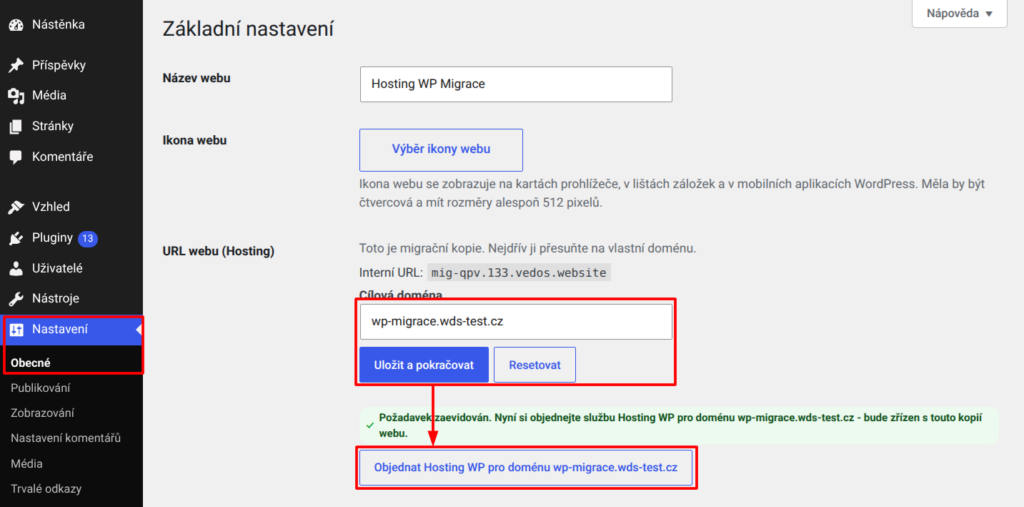
- Log in to the WordPress administration in the test environment.
- In the left menu select Settings General.
- Find the item Website URL (Hosting) and enter the domain name.
- Click the Save and continue button.
After successful registration, continue with the order of Hosting WP service ⧉.
The guide for setting up the Hosting WP service can be found in the article Hosting WP – Setting up a new service. Migration also works for the trial version, about which you can learn more in the guide Hosting WP – Trial for a domain.
After the order is completed and paid, wait for the complete automatic system setup. This includes:
- Modification or set up of WEDOS DNS.
- Renaming the WordPress system.
- Generating and activating HTTPS certificates for the domain.
Some of these actions are time-consuming, so expect that the website may behave unusually during the transfer, or be completely unavailable. If the problems persist for more than 90 minutes, contact customer support. Provide the target website domain and a description or screenshot of the error.
Move emails
If you want to use Hosting WP in a plan with emails (NoLimit, Business), first make sure that no other VEDOS hosting service with the same domain prevents this. If you have such a service, release the domain using the following procedure:
- Go to the service renaming interface for Webhosting or Mailhosting, or remove the Alias according to the instructions in the link.
- Rename the service to a subdomain, e.g.
old.domain.tld, wheredomain.tldis the original domain of the service.
After releasing the domain, you can order a new Hosting WP service under that name. Then perform the email migration according to the guide Emails – Automatic migration.
When automatically migrating emails from another VEDOS hosting service, find the IMAP server address of the original service according to the guide Emails – SMTP, POP3, IMAP.
Enter mailbox addresses with the current domain of the service (according to the pattern old.domain.tld).
Frequently asked questions
How do I move a website to an already existing Hosting WP?
Use a migration plugin, for example Updraft Plus.
What should I do with the old service that I no longer need after the transfer?
Terminate the service and ask support to transfer the unused period to Hosting WP. Provide the name of the original service (after renaming) and the new one.