
In this article, you will learn:
- What the Hosting WP service includes
- What the conditions are for establishing the Hosting WP service
- How to set up Hosting WP:
- Common problems
- Frequently asked questions
Hosting WP
Hosting WP is a new service offering maximum support for the WordPress content management system (CMS). This support includes:
- Preinstalled WordPress when the service is established
- Optimized server with LiteSpeed, Redis, supported PHP and MariaDB
- DDoS protection specialized for WordPress
- Regular automatic backups
Among other things, Hosting WP offers the following in selected plans:
- Unlimited space for website files and database
- Email space with an unlimited number of mailboxes and email aliases
You can find the full service description on the product page of Hosting WP.
Service plans
We currently offer Hosting WP in three plans:
- NoLimit WP. Hosting NoLimit WP ⧉ is a basic plan tailored for small and medium-sized business websites with email support.
- Business WP. Hosting Business WP ⧉ is a plan with maximum performance and mail storage for large companies.
- LowCost WP. Hosting LowCost WP ⧉ is for less demanding users who need a small, simple website and no emails.
You can find a complete overview of the parameters of individual plans on the product page of Hosting WP ⧉.
Conditions for ordering Hosting WP
You can create Hosting WP for any second- or third-level domain, including domains registered with another provider.
Before creating a new order, make sure that:
- You have the domain in your customer account for which you are ordering Hosting WP. Hosting WP can also be established by an authorized user of the domain. You do not have to meet this condition if you register the domain elsewhere than at VEDOS.
- You are not using the domain for which you are ordering Webhosting with another service (Webhosting, WebSite, Mailhosting, WMS).
Ordering Hosting WP
If you meet the conditions, order a new Hosting WP in the order form ⧉. It has five steps:
1. Basic information
In the first step, select a plan and enter the name (domain or subdomain without www) of Hosting WP.
For the NoLimit WP and Business WP plans, you can activate additional services to expand email mailboxes. The Business WP plan also offers the option of monthly billing.

In this step, you can also set:
- DNS settings. Here you can choose whether to automatically adjust the domain's DNS records in the WEDOS system so that the website, emails, or both are directed to the newly established service.
- Discount coupon. By entering and applying a discount coupon, you reduce the price of the basic service, or additional services. At the same time, the system locks the plan change. If you want to change the plan after applying the discount coupon, first deactivate the coupon.
The value of the discount coupon may vary depending on the selected plan.
2. Login/registration
In this step, log in or register in the customer administration.
If you are already logged in to the administration, the system will skip this step.
If you have login problems, follow the instructions in Administration – Login problems.
3. Billing information
Billing information may differ from the owner's information. The system will send all billing and communication regarding service settings to the stated email address (and only to that one).
You can later update the service's billing information according to the instructions Services – Billing information.
4. Operator
In this step, fill in the details of the operator of the Hosting WP service, with whom WEDOS, a.s. will conclude a data processing agreement.
The operator of Hosting WP has no special powers over the service. In the event of a dispute, WEDOS, a.s. considers the customer whose account contains the service to be the owner of the service, unless a court or another competent authority decides otherwise.
5. Completion
In this step, carefully check the entered information, especially the billing email.
At the end of the order, you can choose payment through Credit Account.
After submitting the order, the system will immediately send you an email with payment details. After the payment is successfully received, it will establish the service within 1 hour.
Setting up the website in WordPress
To set up the new service, you need to:
DNS settings
To access Hosting WP, the domain must have the appropriate DNS records set up. You can do this in the following ways:
- Automatically during order. If you check the option set records on WEDOS DNS servers (do not change the DNS servers for the domain) in the order, the system will automatically point the domain to the newly established Hosting WP. This setting is effective only if the domain uses WEDOS DNS servers (NSSET).
- Automatically from the service detail. You can automatically direct a domain using WEDOS DNS servers (NSSET) by using the Set domain in WDNS button according to the instructions below.
- Manually. If the domain does not use WEDOS DNS servers (NSSET), set the service's DNS records manually. You will get the values from the table according to the instructions below.
To set up the domain DNS in the service detail, follow these steps:
- Log in to the customer administration ⧉.
- In the navigation bar, select Hosting services Hosting WP.
- Select the service from the menu whose DNS you want to set or view.
- Find the Domain DNS settings table.
- Select automatic settings for emails, the website, or both.
- Confirm with the Set records in WDNS button.
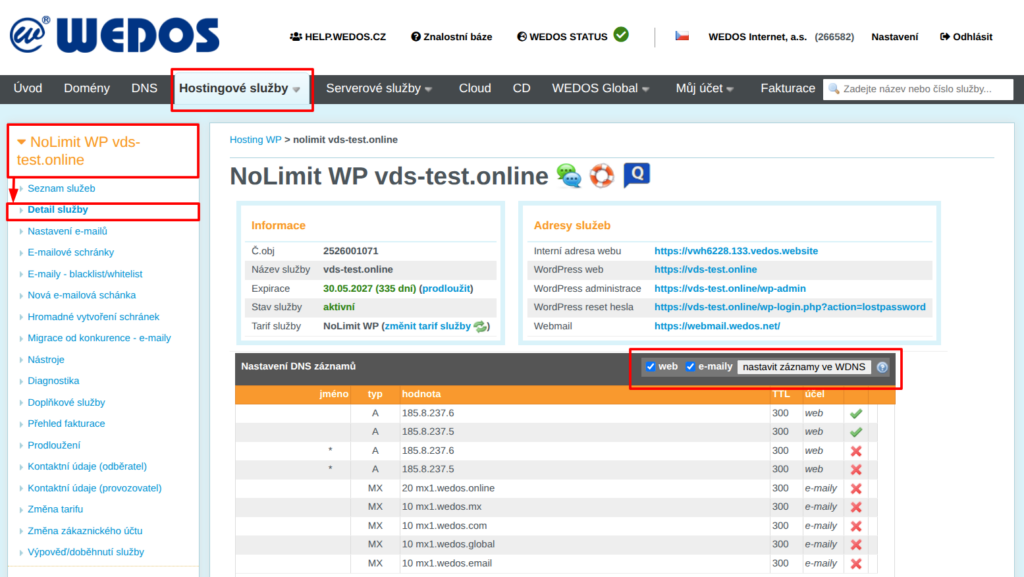
Logging in to the administration
The Hosting WP service includes a preinstalled WordPress content management system. This system is accessible under the administrator account:
- Email: the billing email entered for the service
- Username: the mailbox name of the billing email (without the @ sign and the domain)
- Password: reset it according to the instructions in the service setup email, or at
vasedomena.tld/wp-login.php?action=lostpassword, where replacevasedomena.tldwith the name of your domain.
Setting up emails
Emails are available in the NoLimit WP and Business WP plans. Set them up according to the following instructions:
- Make sure the domain has MX records set correctly and an SPF record.
- Create new email mailboxes.
- If you are moving from another service, transfer the emails to the new mailboxes.
- Check the mailboxes via WebMail, or connect to an email client using IMAP and SMTP.
Common problems
Common problems with ordering and launching the Hosting WP service include:
- Domain in another customer account
- The domain name cannot be used
- Emails stopped working
- The website/password reset link in the administration of the newly established WordPress does not work
The domain is in another customer account
Problem: The error This domain name cannot be used. – The domain is registered in another customer account, you must be in the same account or set permissions. is displayed.
Cause: The domain whose name you want to set up for the hosting service must be in the same customer account as this hosting service, or it must be an account that is an authorized user of the domain and DNS. This is a security measure against domain abuse.
Solution: Move the domain at least temporarily to your own customer account (using the service transfer method, or using an authorization password), or have your account set as an authorized user.
The domain name cannot be used
Problem: The error This domain name cannot be used. – The domain name is already used by another service (service) is displayed.
Cause: A domain (or subdomain) name can be used at most once for most hosting services in our system. It does not matter whether these services are on one customer account – the restriction is system-wide.
Solution: Rename the conflicting service (WebSite, Mailhosting, Webhosting or alias) according to the instructions in the link, for example to stary.domena.tld, where replace domena.tld with your domain name. Remove the alias completely.
Emails stopped working
Problem: After establishing Hosting WP, emails stopped going to an external service (Google Workspace, …).
Cause: If you leave the option to apply all changes in WEDOS DNS checked in the webhosting order, the system will overwrite both the A and AAAA records as well as MX.
Solution: Set the DNS records of type MX back to the original email service provider.
For future orders where a similar problem may occur, uncheck automatic DNS record setup for email routing.
The WP password reset link does not work
Problem: An email about the establishment of Hosting WP arrived, but after clicking the link to the administration, an error or a completely different page is displayed.
Cause: The most common cause is a problem with DNS record settings.
Solution: Check whether the DNS records are set correctly. If the domain does not use WEDOS DNS servers (NSSET), make sure the settings have propagated correctly at the actual provider. In some cases, this setup may take tens of minutes, so please wait and try opening the WP administration later.
Frequently asked questions
I entered the wrong domain name, what should I do?
If the service has not yet been established, request cancellation of the order via the form ⧉ from support. If the system has already established the hosting, rename it.
Why doesn't my VEDOS administration password work for my WordPress?
The password for Hosting WP is generated randomly by the system. For the first access, you must set your own password according to the instructions in the service setup email, or in the chapter Logging in to the administration.