
This guide covers switching from one VEDOS hosting type to another (e.g. Webhosting to Mailhosting). If you need to change the service plan, follow the guides for Webhosting, Hosting WP, or Mailhosting.
In this guide, you will learn:
- General procedure for changing the hosting type
- How to terminate the original hosting and release the domain for the new one
- How to move the website
- How to move the emails
- How to solve common problems
- Frequently asked questions
Changing the hosting type
Changing the hosting type does not automatically move data between services. It only releases the service name for another hosting type.
You usually change the hosting type when optimizing the needs of your website and email services. The most common changes are:
- Mailhosting to Webhosting or Hosting WP. If you have emails with VEDOS and also want to run your own website, you switch to Webhosting or Hosting WP, which includes email services by default. Exceptions are the LowCost WP and Website SODEW web hostings, which do not include email services.
- Webhosting to Mailhosting. If you run a website with another provider and only have emails with VEDOS, changing the hosting type to Mailhosting can save you a lot.
When changing, you typically follow these steps:
- Preparing the new website on a subdomain (optional step): Especially when moving to a completely new website, we recommend first preparing and testing everything on a subdomain, for example
novyweb.vasedomena.tld. Hostings created with a subdomain name are not in conflict with services using the same main domain. At the same time, you have a development and testing environment at hand without affecting the operation of the original website on the main domain. - Releasing the original hosting domain: Once you are ready to switch from one service to another, you need to release the domain from the original hosting. Only then can you order a new service for that domain, or rename a test service to it.
- Moving the website or emails: If you did not move the existing content in the preparation step, you perform the transfer after the service is set up.
Releasing the original hosting domain
VEDOS hosting services tied to a specific domain or subdomain are mutually incompatible. If you want to set up hosting for a domain that another hosting service already uses as its name or alias, you must first change or completely remove that name. You can do this in the following ways:
Termination of hosting
Terminating the hosting is the simplest way to release the domain of the original hosting.
By submitting a termination, you set the service to run until the end of its term. The service expiration date does not change; the system simply stops trying to renew it. The time you have to move data and emails is therefore determined by the expiration date of this service.
Proceed as follows:
- Log in to the customer administration ⧉.
- In the navigation bar, select the type of service you want to terminate.
- Select the specific service from the list.
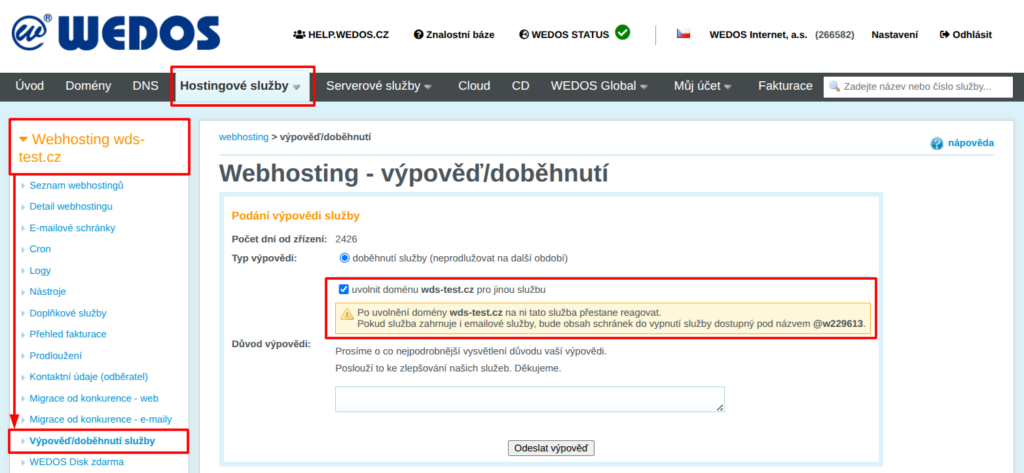
- In the left menu, click Termination/service expiry.
- Select the Termination type and also check the box release the domain for another service.
- Enter the reason for termination and click the Submit termination button.
Terminate/let the service expire:
Renaming the hosting
You use releasing the domain name by renaming in cases where you do not want to terminate the service directly - you have another use for it, or you need more time to move the website and emails to the new service.
If you rename the service mojedomena.tld for example to staryweb.mojedomena.tld, you can set up a new service for the original name, or rename another service to it (for example a service on a test subdomain). Follow the renaming guides for:
Removing a Webhosting alias
The Webhosting service can have multiple domain names, which you set up via so-called Aliases. More information and the procedure for removing aliases can be found in the guide Webhosting - Aliases.
Website transfer
If you want to move the original website to the new service, follow the destination service:
- Webhosting: The Webhosting service currently does not support any automated transfers from other VEDOS services. For moving from Hosting WP, you can use any migration plugin; pages (but not the editing interface) from WebSite 1.0 to Webhosting can be transferred by customer support upon request.
- Hosting WP: The Hosting WP service supports moving from WordPress on Webhosting using the VEDOS migration plugin. More information can be found in the guide Hosting WP - Moving from another service.
Email transfer
All VEDOS services that support email include the option of automatic mailbox migration. To complete a successful migration, prepare:
- IMAP server name: You can find it in the guide Emails - SMTP, POP3, IMAP.
- Names and passwords of the source mailboxes: Enter the mailboxes including the service domain. If you removed the name from the service or renamed it, use the current service name after the @ sign, for example
schranka@stary.domena.tld, orschranka@w123456. If you removed a Webhosting alias, enter the mailbox name with the main Webhosting domain.
You perform the automatic migration itself in these steps:
- Log in to the customer administration ⧉.
- In the navigation bar, select the type of service you want to move the emails to.
- Select the target service from the list.
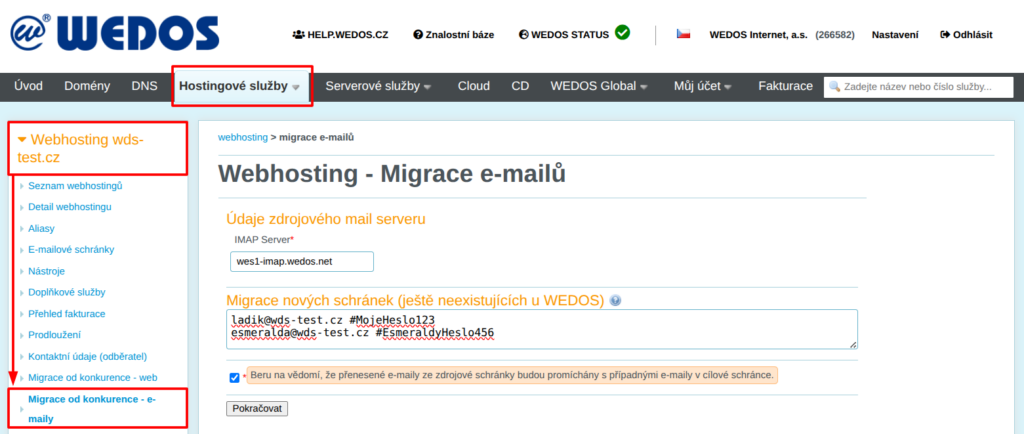
- In the left menu, click Migration from competitor - emails.
- Fill in the prepared IMAP server and mailbox details.
- Agree to the warning about the behavior of migrated emails and click the Continue button.
Open the interface for automatic email migration to the service:
A complete guide to email migration, including solutions to common problems, can be found in the guide Emails - Automatic migration.
Common problems
The common errors when switching between Webhosting and WebSite services include:
- An existing service order with the same name
- The domain is in another customer account
- An error or the old website is displayed
Existing order with the same name
Problem: An error message appears: An order (service) for this domain already exists in the system.

Cause: The system records an existing service or an active service order with the given domain name (alias).
Solution: Make sure that the original service name has been removed or the alias has been removed correctly. If the original name still remains on the service, try performing the action again from a different browser.
If an unpaid order is preventing the new service from being set up, contact support ⧉ and ask them to cancel it.
Domain in another customer account
Problem: An error appears: The domain is located in another customer account.

Cause: If you are creating a service for a domain registered with VEDOS, the service and the domain must be in the same customer account, at least temporarily.
Solution: Move the domain to your own account at least temporarily using the authorization password or service transfer using login and ID.
Non-functional or old website
Problem: The old website or an error message is displayed.
Cause: Website content is often cached in the browser. It may then display data from the original website even though the domain already points to another hosting.
Webhosting services have different A and AAAA DNS records. When renaming and creating services, you can let the DNS records be set automatically - if you reject the automatic change by unchecking the relevant box, you will need to point the domain to the service later.
Solution: If the original website is displayed, first try loading it without the browser cache using the keyboard shortcut Ctrl+Shift+R.
If an error is displayed, point the domain to the new service according to the guide Domains - Directing to services, or manually according to the guide DNS - Domain records. Automatic DNS directing only works if the domain has DNS records with us. Otherwise, you must set the DNS records manually according to the provider's instructions. Service addresses can be found in the table of the same name in the Service detail.
Frequently asked questions
We still have quite a lot of days left until the original service expires. How can we use this period?
If you have no use for the original service that you released by changing the type, you can request a transfer of the proportional part of the unused period to the new service. When terminating such a service, state the name and type of the new service. If you need the service to end on a later date, for example so that you have enough time to move the data and mail, include that date in the text as well.
We let the service run until expiry, but it expired and we cannot complete the website or email transfer. Can you turn it on for a few more days?
Customer support can temporarily enable the hosting service for up to 5 days after expiry. We cannot temporarily enable a service that has been expired for 6 or more days.
When we remove the domain from the original service to release the name for the new service, how do we access the website and emails on the original service?
You will no longer be able to access the website itself after removing the name, but the files and data on FTP and in the databases will remain until the service is deleted. If you want to keep the old website available, for example on a subdomain, rename the hosting instead of terminating it.
Mailboxes are available under the domain corresponding to the service name. So if the service name after termination is, for example, w123456, you can access the mailbox schranka with the login schranka@w123456. This should work both for webmail ⧉ and any email client. However, no new emails will arrive in the mailboxes of the service with the removed name - so do not delay unnecessarily with migration and especially with creating new mailboxes (they are created automatically during migration, and later emails can be moved into them).